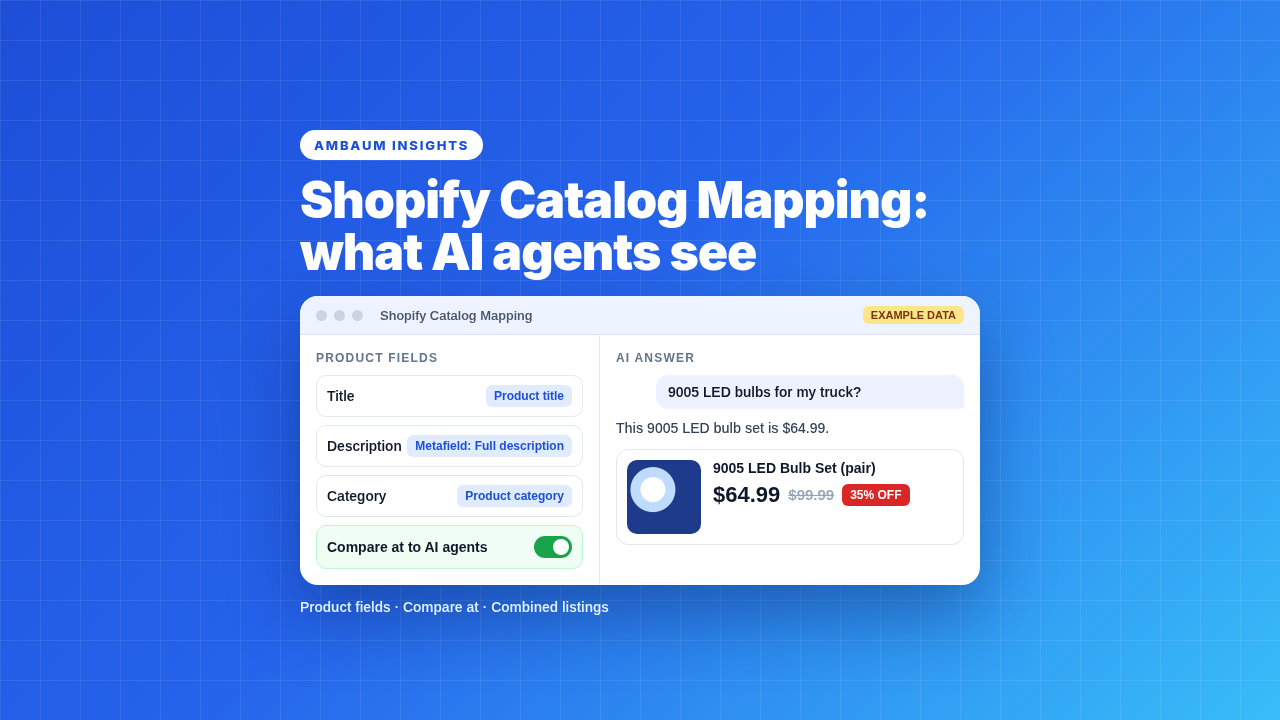
As a Shopify merchant, the Shopify Catalog Mapping tool is where your product data gets fed into the Shop app and the AI assistants that shop through Shopify Catalog: ChatGPT, Microsoft Copilot, and Muse (Meta AI). It is easy to miss. If your catalog runs on metafields, variants, and fitment data, it deserves ten minutes before Black Friday. We covered how Muse checks out with Shop Pay in Shop Pay Is Now a Wallet in Muse, and what assistants actually read in our agentic product rewrites piece.
To open it, go to Sales channels > Agentic, click the arrow next to Shopify Catalog, then click Review your product data. It controls three things: product fields, compare at, and custom combined listings. Here is what each one does and what we would change.
Product fields: one source per field
The Product fields section shows where each product's title, description, and category come from, and lets you change the source. You can pick a product attribute, a product metafield, or a metaobject reference. The catch: each field takes only one source.
If your theme shows a Full description metafield on the product page, the agents may still be reading the short default description. Shopify's own example in the Catalog Mapping Help Center article is exactly this case: change the description source to Product Metafields > Full description. Then use the Preview tab to check a few products before you save.
Either way, write fitment into the description agents read. For auto parts and accessories, “fits 2015 to 2020 F-150” sitting in a metafield the agent never sees is the same as not having it. Changes are processed with a delay, so do not expect the AI answer to update the same afternoon.
Compare at: the setting that can create a fake sale
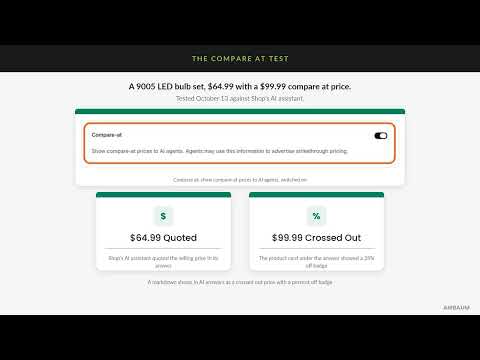
The Compare at switch decides whether Shopify Catalog sends your compare at price to AI agents. When it is on, Shopify sends compare at only when it is higher than your price, and agents might use it to show strikethrough pricing. When it is off, agents get only your current price.
On October 13 we tested it. A 9005 LED bulb set priced at $64.99 with a $99.99 compare at price. Shop's AI assistant quoted $64.99, and the product card under its answer showed $99.99 crossed out with a 35% off badge.
That is great for a real markdown. Here is the catch. If your compare at field holds MSRP (the manufacturer's list price), every product priced below MSRP can show that badge, even when nothing is on sale. Shoppers see a discount you never ran. For catalog heavy stores that load MSRP into compare at by default, that can be most of the catalog.
What we recommend
- Keep compare at for real markdowns only.
- Move MSRP to a metafield, so it stays available to your theme without reading as a sale.
- Check the Compare at switch. Your store starts with a default selection, and per Shopify, changing how you use compare at prices does not change that switch for you.
Custom combined listings and options
The third section groups separate products that are versions of the same part into one listing in Shop and agentic storefronts, and sets the option names shoppers see. Think one bulb in three color temperatures, built as three products. Grouped, the agent shows one listing with a clear option instead of three near duplicates.
You choose the grouping method: a delimiter in the product title, a product metafield, or a product tag prefix. The Grouping tab shows which products combined, which stayed separate, and which need review. This changes only your Shopify Catalog, not your online store. One note from Shopify: once you activate custom combined listings, Shopify Catalog ignores your Shopify Combined Listings app setup, so pick one source of truth.
When to review it
If your store uses a lot of variants and metafield data, review the Catalog Mapping tool before BFCM and after every large catalog import. Imports are where compare at gets filled with MSRP and new products land without the metafield the description now points to.
The timing matters this year. Per Shopify's 2026 Global Holiday Retail Report, 65% of shoppers say they will use AI for at least one shopping task this season (survey of 18,000 shoppers in nine countries, conducted by Sapio Research in July 2026). Your product data is what those assistants repeat.
What to check this week
- Open Sales channels > Agentic, click the arrow next to Shopify Catalog, then Review your product data. If it says Ineligible, click it to see why.
- In Product fields, check the description source. If you use a full description metafield, map it. Preview three products.
- Pick five products and confirm fitment appears in the description the agent reads.
- Export products and find every compare at price that equals MSRP. Move those values to a metafield.
- Set the Compare at switch on purpose, then preview a product that is really on sale.
- In Custom combined listings, review the Grouping tab and anything marked need review. Set option names shoppers will understand.
- Put “review Catalog Mapping” on your checklist for every large catalog import.
At Ambaum we track every changelog release and test it on real catalogs so our merchants do not have to. If you want a second set of eyes on your catalog mapping before BFCM, reach out.
No pitch. No pressure. Just perspective.
Read the full transcript
As a Shopify merchant, the Catalog Mapping tool is where your product data gets fed into the Shop app, Copilot, Muse, and the other AI assistants. Here is what to check before Black Friday.
To open it, go to Sales channels, then Agentic. Click the arrow next to Shopify Catalog, then click Review your product data. It controls three things. Product fields: where each product's title, description, and category come from. Compare at: whether your compare at price is sent to AI agents. And custom combined listings, which group separate products into a single listing.
Compare at deserves a closer look. We tested an LED bulb set priced at $64.99 with a $99.99 compare at price. Shop's AI assistant quoted $64.99, and the product card under its answer showed $99.99 crossed out with a 35% off badge.
Here is the catch. If your compare at field holds the manufacturer's list price, every product priced below it can show that badge, even when nothing is on sale. Keep compare at for real markdowns, move list price to a metafield, and check the compare at switch.
Then grouping. Group separate products that are versions of the same part into one listing in Shop and agentic storefronts, and set the option names shoppers see. This changes only your Shopify Catalog, not your online store.
And the product fields. Each field takes one source, so map your full description metafield if you use one. Either way, write fitment into the description agents read.
Review this tool before Black Friday and after every large catalog import. Shopify's holiday survey found 65% of shoppers will use AI for a shopping task this season. Reach out to Ambaum for a second set of eyes on your catalog mapping.