AI shopping agents now pick the store, not just the product. When a buyer asks an assistant for brake pads or a patio table, the agent decides which store to send them to, and it often checks out right in the chat. We covered how that checkout works in Any AI Agent Can Now Buy From Your Store, and how Shopify Catalog decides what the agent reads in our Shopify Catalog Mapping tool post. This piece is the practical part: a test you can run on your own store in a few minutes.

With BFCM a few weeks out, this is the cheapest way we know to find out what an agent sees when it looks at your store.
The test: shop like a stranger
Open the AI assistant you use most. ChatGPT, Claude, Gemini, and Meta's Muse all work. Shop for your best seller without naming your store, the way a buyer would. For a parts store, that might be “front brake pads for a 2019 Ram 1500.”

Then ask the agent why it picked the store it picked. If it is not yours, give it your store's web address and ask whether it ran into any issues, like the shipping cost or the delivery date. Agents tend to name the exact thing they could not confirm, and that answer is your fix list.
Check it inside Shopify too
You can run a similar check in your admin. Go to Sales channels > Agentic and enter a shopper style query in the search preview. It shows the raw Shopify Catalog results and which of your products could rank. Shopify's Help Center calls it a directional signal, since each AI channel re-ranks results with its own logic.
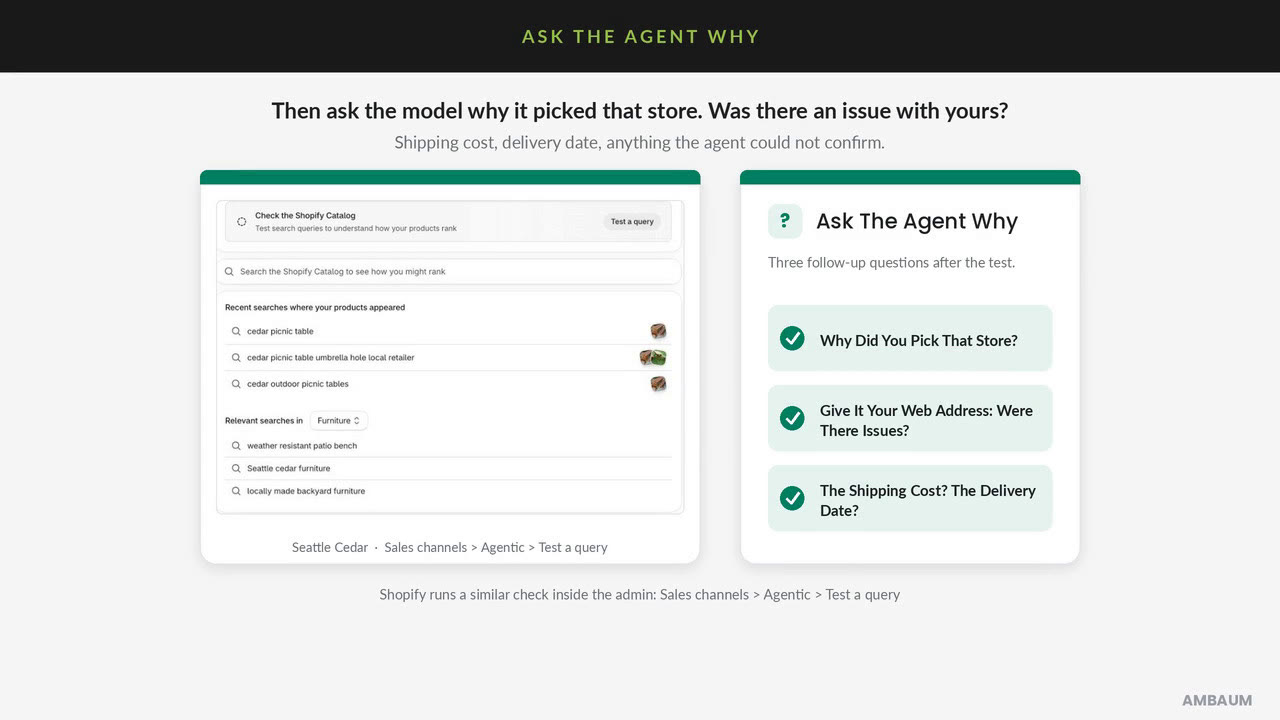
Fix one: let the agents in
Start with anything that blocks agents before they reach your store. If you use a bot blocking or country blocking app, ask the vendor whether it blocks AI agents. Many of these tools were set up to stop scrapers, and some treat a shopping agent the same way.
Next, open yourstore.com/robots.txt and look for a Disallow: /policies/ line. Shopify's current managed robots.txt no longer blocks policy pages. But if your theme has a robots.txt.liquid template that prints the older default rules, that line can still be there, per Shopify's robots.txt guide. Agents need to read your shipping and return policies, so remove the rule from the template, or delete the template if you do not need custom rules.

Fix two: write your rules as numbers
An agent cannot confirm “fast shipping” or “easy returns.” It can confirm numbers. Put these in your store policies in plain figures:
- Freight charges: what oversized or heavy items cost to ship, and where.
- Delivery times: business days by region or method.
- Cancellation windows: how long a buyer has to cancel an order.
- Core return windows: for parts stores, how many days a buyer has to return a core and how the deposit is refunded.

Fix three: keep stock and pickup current
Agents favor stores that can show the item is in stock. Keep inventory counts accurate in Shopify, especially on your best sellers going into November. If you offer local pickup, set it up in Shopify, then run the test again and ask the agent whether it sees pickup as an option.
Two things to avoid
Do not replace your agents.md file unless you have a clear reason. Every Shopify store serves a managed file at /agents.md that tells AI agents how to find your products, policies, and checkout. Shopify keeps it current for you. Adding an agents.md.liquid template replaces that managed file, and from then on you maintain it yourself.
Avoid vague promises. “Fast shipping” and “hassle free returns” are claims no agent can verify. If it cannot confirm a promise, it moves on to a store that states the number.

What to do before BFCM
- Run the test on your top three products with two different assistants.
- Ask each agent why it picked the store it picked, then give it your URL.
- Check your bot blocking app and your /robots.txt for Disallow: /policies/.
- Rewrite shipping, delivery, cancellation, and return rules as numbers.
- Confirm stock counts and pickup settings, then rerun the test.
- Leave Shopify's managed /agents.md in place unless you have a reason to change it.
At Ambaum we run this test for Shopify merchants and tell you what the agents see. If you want that done before Black Friday, reach out.
No pitch. No pressure. Just perspective.
Read the full transcript
As a Shopify merchant, you should know that AI shopping agents send buyers to a store, not just to a product. So here is a test you can run on your own store today and what to fix if you fail it.
The test. In your AI assistant of choice, Claude, Gemini, Muse, or any other, shop for your best seller without naming your store. Something like front brake pads for a 2019 Dodge truck. Then ask the model why it picked that store. If it is not yours, give it your web address and ask if there were issues like the shipping cost or the delivery date. You can run a similar check inside Shopify under Sales channels, Agentic, Test a query.
Now the fixes. First, ask your bot blocking or country blocking app's vendor whether it blocks AI agents, and remove any Disallow: /policies/ line from your robots.txt.liquid file. Agents need to read your policies. Second, write your rules as numbers in your policies. Freight charges, delivery times, cancellation windows, core return windows. Third, keep stock current. And if you offer pickup, set it up and ask the agent if it sees it.
Two things to avoid. Do not replace agents.md, Shopify's file for AI agents, unless you know what you are doing. Shopify sets it up for your store by default. And avoid vague promises like fast shipping that no agent can confirm.
Ambaum can run this test on your store before Black Friday. Reach out and we will tell you what the agents see.